
HTML Tutorial
HTML is the standard markup language for Web pages.
With HTML you can create your own Website.
HTML is easy to learn - You will enjoy it!
Watch our Video Tutorial »NEW
Easy Learning with HTML "Try it Yourself"
With our "Try it Yourself" editor, you can edit the HTML code and view the result:
Example
<!DOCTYPE html>
<html>
<head>
<title>Page Title</title>
</head>
<body>
<h1>This is a Heading</h1>
<p>This is a paragraph.</p>
</body>
</html>Click on the "Try it Yourself" button to see how it works.
HTML Examples
In this HTML tutorial, you will find more than 200 examples. With our online "Try it Yourself" editor, you can edit and test each example yourself!
HTML Exercises
This HTML tutorial also contains nearly 100 HTML exercises.
HTML Quiz Test
Test your HTML skills with our HTML Quiz!
My Learning
Track your progress with the free "My Learning" program here at W3Schools.
Log in to your account, and start earning points!
This is an optional feature. You can study W3Schools without using My Learning.

HTML Editors
A simple text editor is all you need to learn HTML.
Learn HTML Using Notepad or TextEdit
Web pages can be created and modified by using professional HTML editors.
However, for learning HTML we recommend a simple text editor like Notepad (PC) or TextEdit (Mac).
We believe that using a simple text editor is a good way to learn HTML.
Follow the steps below to create your first web page with Notepad or TextEdit.
Step 1: Open Notepad (PC)
Windows 8 or later:
Open the Start Screen (the window symbol at the bottom left on your screen). Type Notepad.
Windows 7 or earlier:
Open Start > Programs > Accessories > Notepad
Step 1: Open TextEdit (Mac)
Open Finder > Applications > TextEdit
Also change some preferences to get the application to save files correctly. In Preferences > Format > choose "Plain Text"
Then under "Open and Save", check the box that says "Display HTML files as HTML code instead of formatted text".
Then open a new document to place the code.
Step 2: Write Some HTML
Write or copy the following HTML code into Notepad:
<!DOCTYPE html>
<html>
<body>
<h1>My First Heading</h1>
<p>My first paragraph.</p>
</body>
</html>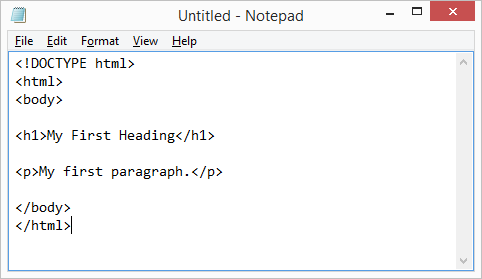
HTML Basic Examples
In this chapter we will show some basic HTML examples.
Don't worry if we use tags you have not learned about yet.
In this chapter we will show some basic HTML examples.
Don't worry if we use tags you have not learned about yet.
HTML Documents
All HTML documents must start with a document type declaration: <!DOCTYPE html>.
The HTML document itself begins with <html> and ends with </html>.
The visible part of the HTML document is between <body> and </body>.
All HTML documents must start with a document type declaration: <!DOCTYPE html>.
The HTML document itself begins with <html> and ends with </html>.
The visible part of the HTML document is between <body> and </body>.
Example
<!DOCTYPE html>
<html>
<body>
<h1>My First Heading</h1>
<p>My first paragraph.</p>
</body>
</html>
<!DOCTYPE html>
<html>
<body>
<h1>My First Heading</h1>
<p>My first paragraph.</p>
</body>
</html>The <!DOCTYPE> Declaration
The <!DOCTYPE> declaration represents the document type, and helps browsers to display web pages correctly.
It must only appear once, at the top of the page (before any HTML tags).
The <!DOCTYPE> declaration is not case sensitive.
The <!DOCTYPE> declaration for HTML5 is:
<!DOCTYPE html>
The <!DOCTYPE> declaration represents the document type, and helps browsers to display web pages correctly.
It must only appear once, at the top of the page (before any HTML tags).
The <!DOCTYPE> declaration is not case sensitive.
The <!DOCTYPE> declaration for HTML5 is:
<!DOCTYPE html>HTML Headings
HTML headings are defined with the <h1> to <h6> tags.
<h1> defines the most important heading. <h6> defines the least important heading:
HTML headings are defined with the <h1> to <h6> tags.
<h1> defines the most important heading. <h6> defines the least important heading:
Example
<h1>This is heading 1</h1>
<h2>This is heading 2</h2>
<h3>This is heading 3</h3>
ADVERTISEMENT
<h1>This is heading 1</h1>
<h2>This is heading 2</h2>
<h3>This is heading 3</h3>HTML Paragraphs
HTML paragraphs are defined with the <p> tag:
HTML paragraphs are defined with the <p> tag:
Example
<p>This is a paragraph.</p>
<p>This is another paragraph.<
<p>This is a paragraph.</p>
<p>This is another paragraph.<
Post a Comment